
The Make a video assistant (Beta) lets you create a karaoke video, a lyric video or synced subtitles by chatting, without going through the Create screens yourself. It is available to everyone who is logged in.
Open the assistant
Click the Make a video button in the top bar of any page of your dashboard.
Or use the Make a video box at the top of your Dashboard page.
Make your first video
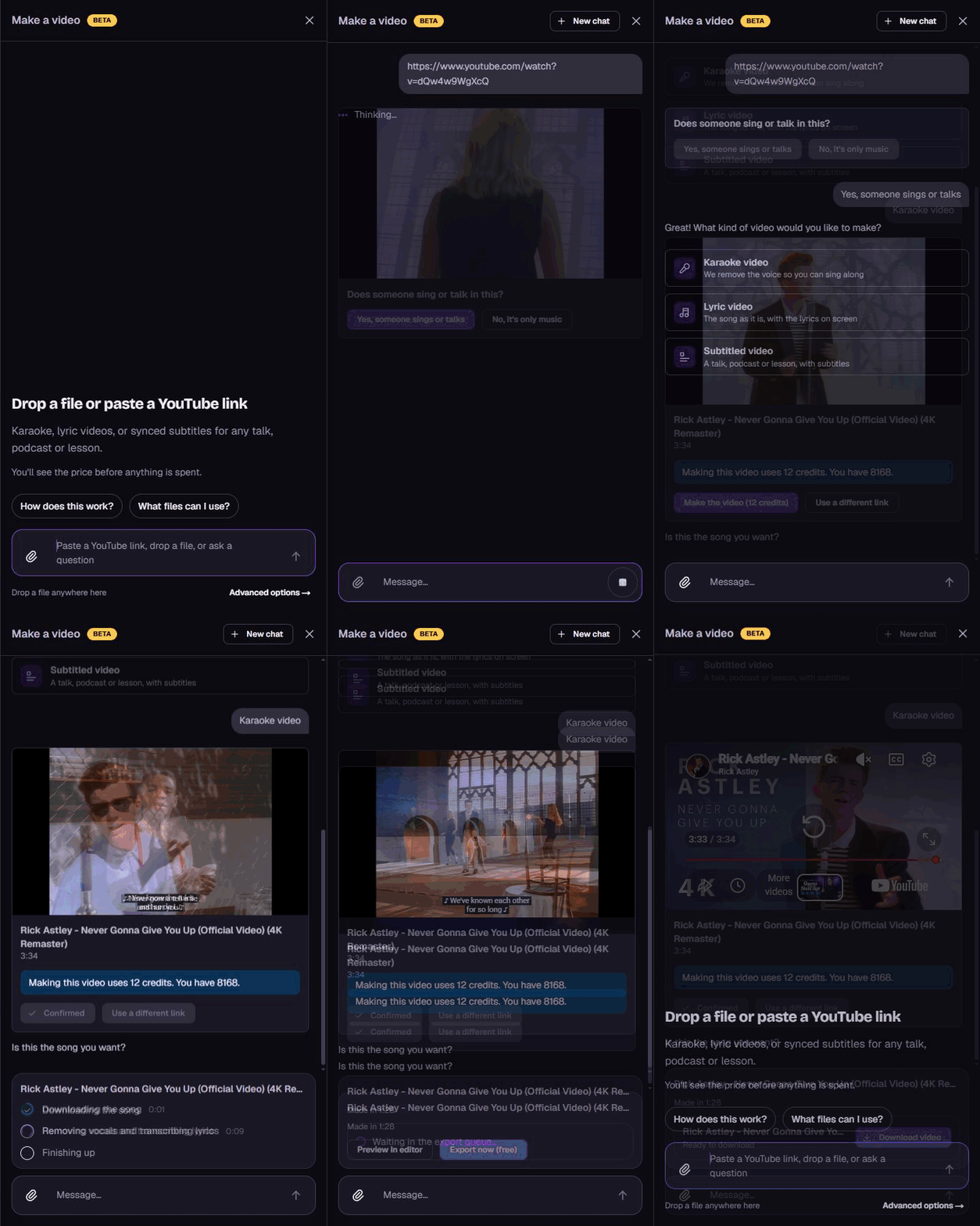
Drop an audio or video file into the assistant, click Attach a file, or paste a YouTube link.
Tell the assistant what you want, for example a karaoke video or a lyric video. You can ask questions such as "How does this work?" or "What files can I use?" at any time.
Confirm the song when asked. You will see the price before anything is spent.
Follow the progress while the assistant reads your file, removes the vocals and transcribes the lyrics.
When your video is ready, click Preview in editor or Open in editor to customize it, or click Export now to export it right away.
When the export finishes, click Download video. You can follow all your exports on the Exports page.
Good to know
Your videos from the assistant appear on your Dashboard like any other project.
Once a project continues in the editor, click New chat in the assistant to make another video.
If something goes wrong, try again or start a new chat. If an export fails, your credits are refunded.
The assistant is in Beta, so it may change. You can still create videos with the Create button on your Dashboard at any time.