Welcome to MyKaraoke Video! This guide will guide you on creating your first karaoke or lyric video.
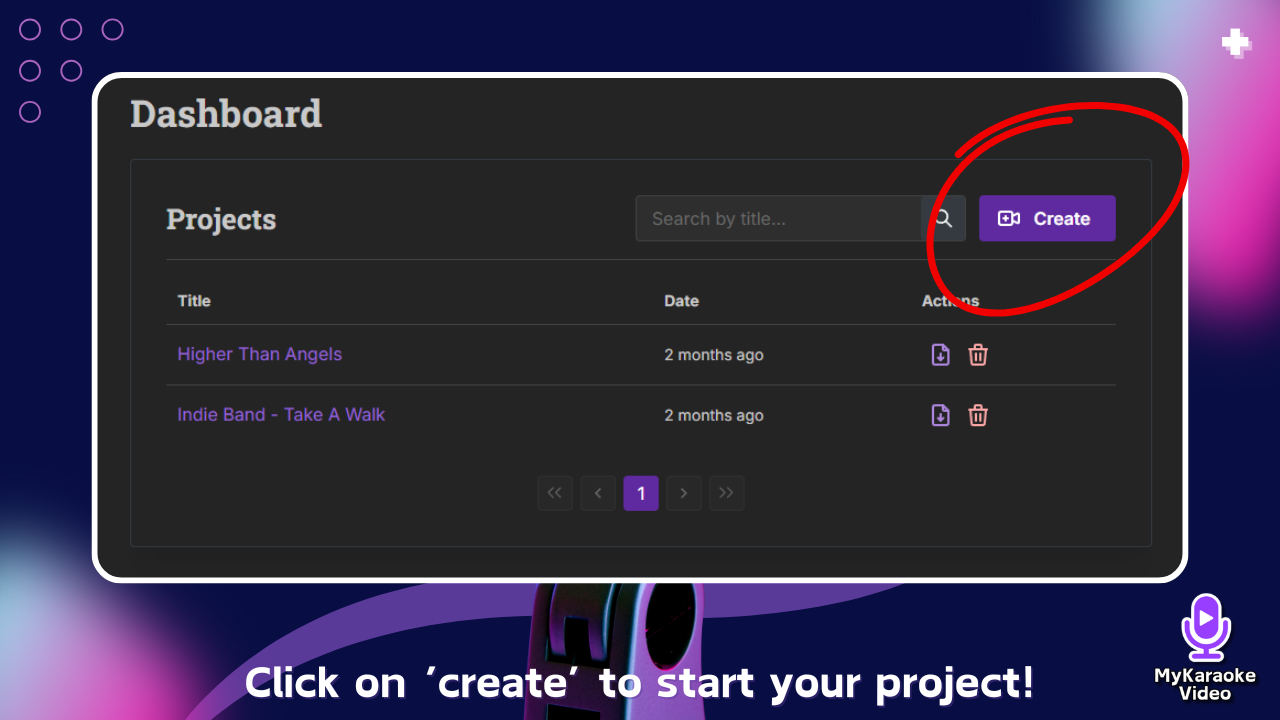
From your Dashboard page, click the Create button in the top right corner.

Use this if you have a normal song that has vocals
The system will automatically separate the vocals from the music and sync the lyrics
You can create a karaoke video or a lyrics video
Use this if you already have an instrumental track
Upload your instrumental audio file and sync it later
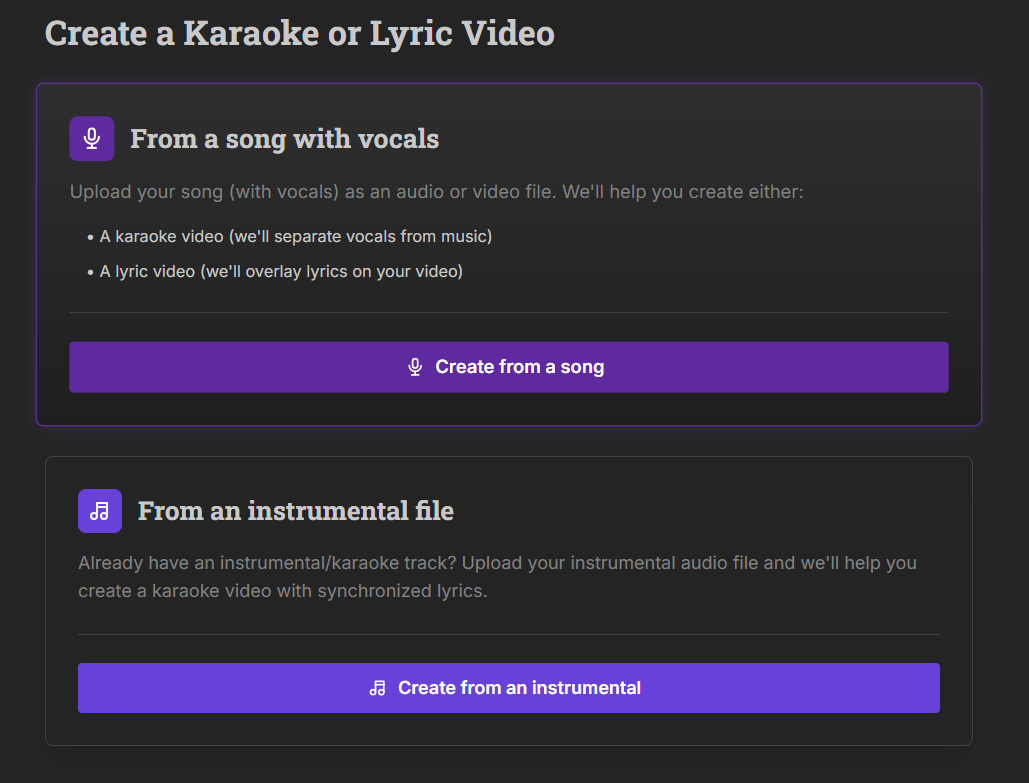
If you selected “Create from a song” (most common), follow the steps below.
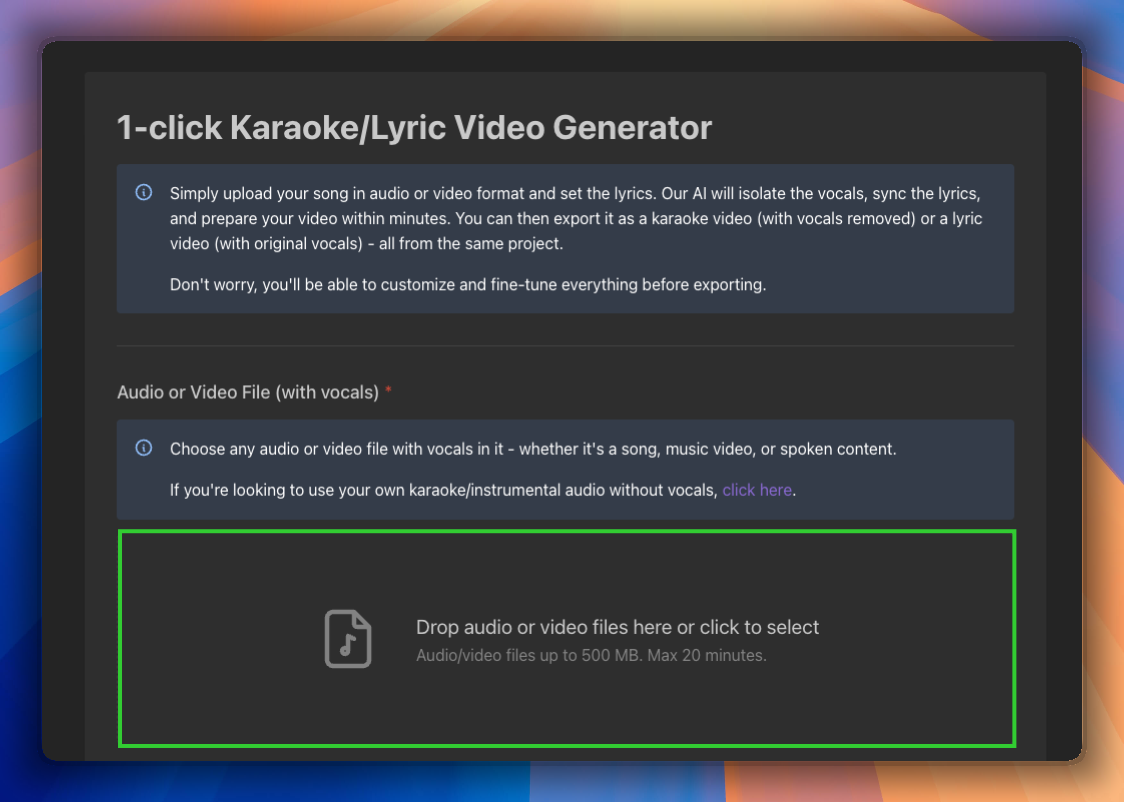
You’ll see the 1‑click Karaoke/Lyrics Generator screen
Upload your audio or video file in any of these ways:
By dragging and dropping your file into the upload area
By clicking on “browse files” to choose from your device
You can use any audio or video file with voices: songs, music videos, or spoken content

Instead of uploading a file, you can paste a YouTube link and we'll extract the audio for you:
Paste the video's link into the "Video link" field below the upload area
A preview of the video will appear so you can confirm it's the right one — click "Change link" if you need to pick a different video
The audio is extracted automatically when you click Generate
A few things to keep in mind:
Only YouTube links are supported at the moment
Audio extraction costs 1 credit per minute of video, in addition to the regular generation cost — the total is shown on the Generate button before you confirm
You can use a file or a link, not both — remove one to switch to the other
Private, age-restricted, or unavailable videos can't be extracted
If the video is longer than your plan's maximum audio length, you'll see a warning and the generation may be rejected
If you’re creating a lyric video and don’t care about the instrumental version, choose Base.
On the other hand, if you’re creating a karaoke video and the song has backing vocals which you’d like to separate from the lead vocal and adjust their volume independently, choose the Pro option.
In the lyrics section you have the option to either let the AI transcribe them for you or provide the lyrics yourself. In most cases, we recommend letting the AI transcribe them for you. This option provides the highest accurate sync possible which will reduce the amount of manual fixing you’ll need to do afterwards.
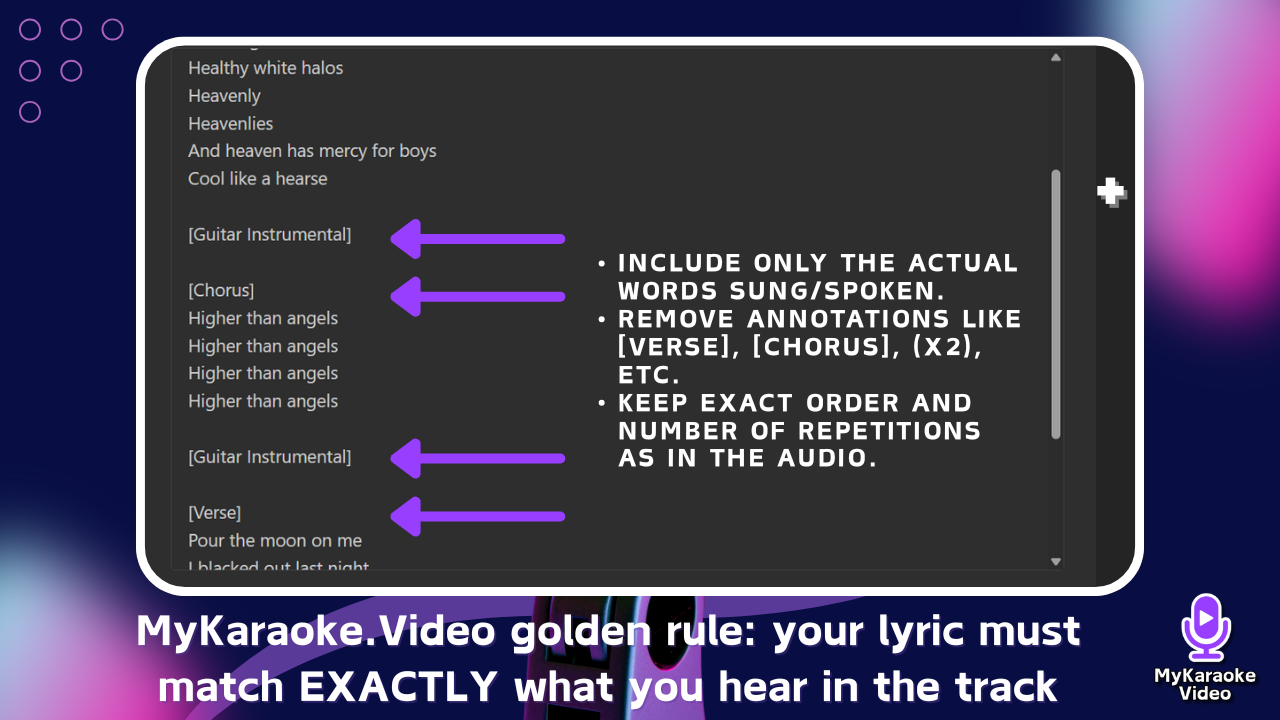
If you still want to provide the lyrics or your lyrics are in a language that’s not supported, it’s extremely important that the lyrics match your song exactly, word for word. Any differences will cause the sync to be inaccurate and you will need to fix it manually later.

Give your project a title to help you identify it.
Click the Generate button in the bottom right corner
The AI will automatically:
Isolate the vocals from your audio/video file - this is needed for accurate lyrics sync/transcription
Transcribe and/or sync the lyrics with your audio
Prepare your video so you can customize it
You'll be able to customize and tweak everything before exporting
After a few minutes, you video will be ready for review and customization. You will automatically be redirected to our video editor.
Learn how to customize your video in the following article:
Creating your first video - Step 2 - Customizing your project
New to MyKaraoke Video? Learn how to customize your video by choosing a layout, text styles, set a background, add images, videos and text to make it unique.
