Once you have generated your project, you may customize it to make it unique.
If you haven’t generated your video yet, make sure to follow this guide first:
Creating your first video - Step 1 - Generating your project
New to MyKaraoke Video? Learn how to get started and create your first karaoke or lyric video with AI with this step-by-step tutorial.
Let’s quickly learn what are the main sections in our video editor.
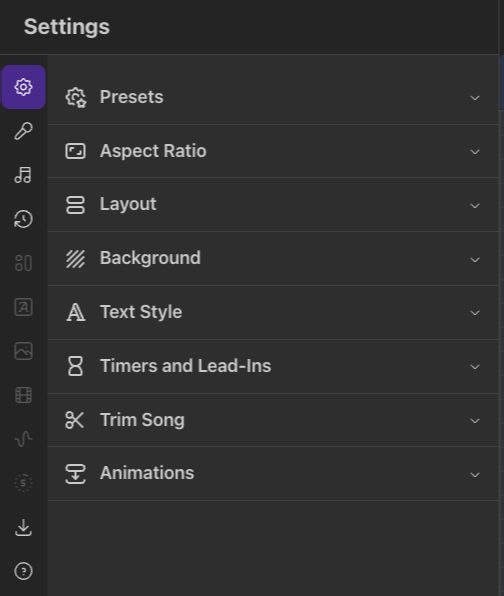
From here you will control most of the aspects of your project. Let’s quickly explain what each option is for.
Presets lets you save existing settings and apply them easily in other projects. You can learn more about presets in the following article.
Project Presets: Quick Guide
Presets let you save and reuse your favorite project settings. Think of them as templates for your video styles.
Change your video dimensions. Widescreen (Perfect for YouTube), Square (For the Instagram or X feed), Vertical (Great for TikTok, YouTube Shorts)
Choose how the lyrics are arranged in your video. We have several layout options like Karaoke, Scrolling, Single, Duet and Dual Language. The Default or Karaoke are usually a good option for karaoke-style videos. The Single or Scrolling layouts are a good choice for lyric videos.
Default: Multiple lines at once (ideal for karaoke videos)
Karaoke: Multiple lines at once, with smoother transitions and improved text fitting, best for karaoke videos.
Scrolling: The lyrics smoothly scroll across the screen
Single: One line at a time (better for lyric videos)
Duet: For songs with two singers/voices. Choose a unique style for each.
Dual Language: Ideal for displaying a translated version of your lyrics alongside the original ones.
Deep dive into layouts and text style options in the following guide:
Mastering Video Layouts and Text Styles
A Guide to Customizing Your Lyric and Karaoke Video Appearance
Set the background for your video.
Color: Choose a solid color or a gradient background
Image: Upload or choose background images
.jpg, .png, and .webp images supported up to 50MB
Drag files or click on "browse files"
Access previously uploaded images from "Open Library"
Video: Use a video as background
.mp4 and .webm videos supported up to 250MB and 1080p resolution
Drag files or click on "browse files"
Access previously uploaded videos from "Open Library"
Customize fonts, colors, spacing and text effects.
Typography:
Font family: Choose from the available fonts or search all fonts
Writing system: Select Latin (default) or other writing systems
Font name: Pick from more than 1700 available fonts
Font size: Adjust the text size with the slider
Font weight: Control the weight of the text with the slider
Text Effect:
Karaoke: Highlights each line as it’s sung (perfect for karaoke videos)
Highlight: Highlights only the word that’s being sung (ideal for lyric videos and sing-alongs)
Colors:
Text color: Choose the main color of your lyrics
Text effect color: Choose the highlight/karaoke color
Outline color: Add a border to the text for better visibility
Outline thickness: Adjust the border width with the slider
Spacing:
Letter spacing: Control the space between characters
Line spacing: Adjust the distance between lines
Case & Direction:
Capitalization: Normal, ALL CAPS, etc.
Text direction: Left to right or right to left (for different languages)
Add progress bars, countdowns, and lead-in bars to your video.
Show progress bar on breaks
Enabling this will show a progress/loading bar anytime there’s an instrumental break longer than the number of seconds specified.
Show 5-second countdowns
Enabling this will show a 5-second countdown anytime there’s a gap longer than 5 seconds but shorter than the number specified in the “Show progress bar on breaks” option (if you have enabled it).
Show lead-in bars
Enabling this option will show a lead-in bar just before the first word of a line starts. You can choose whether this is shown for every line or only after there’s a pause. This is ideal for karaoke-style videos to cue the singer on time.
You can trim the start and/or end of your song by adjusting the slider. This will, of course, affect the preview as well as the final export.
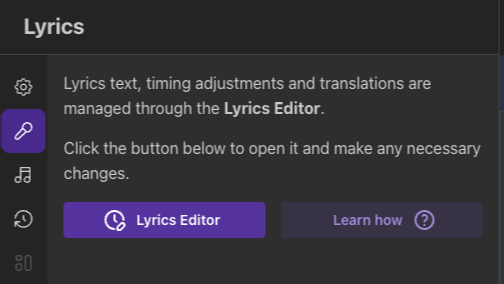
From here, you can access our Lyrics Editor, which lets you edit your lyrics. You can fix mistranscribed lyrics, adjust word timing, or split words into syllables for precise timing—all from the Lyrics Editor.
You can learn all about the Lyrics Editor on this guide below.
Master the Lyrics Editor (previously known as Sync Editor)
Your comprehensive guide to perfecting lyric timing, fixing synchronization issues, and creating professional-quality karaoke tracks with precise control over every word and line using the Lyrics Editor.
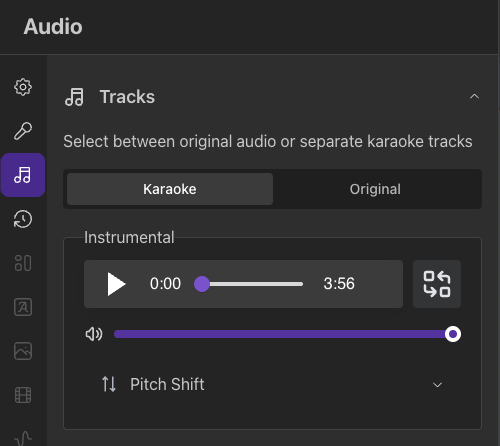
The Audio panel lets you choose the audio source for your video. Choose Original if you want to use the audio you uploaded without any AI vocal removal. Choose Karaoke if you want to use the separated audio tracks and control their volume independently (instrumental, lead vocals, backing vocals).
Learn more about the Audio Tracks settings below.
Audio Track Options: Karaoke vs. Original
How to configure instrumental, vocal, and backing vocal tracks for your videos.
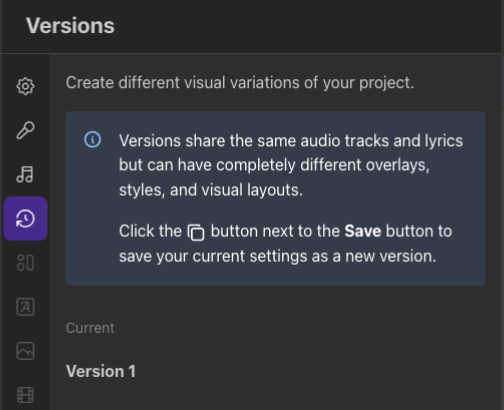
Create different visual variations of your project. Click the duplicate icon on the right-side of the Save button to save your current settings as a new version. You can then rename each version name or delete them.

Our video editor includes a preview player for your project. Any changes you make to the settings appear in real time.
Save your work often to avoid losing changes. Click the Save button regularly.
After you’re happy with your customizations and are ready to export your video, click the Export button in the upper right corner.
Follow this guide to learn more:
Creating your first video - Step 3 - Exporting your video
New to MyKaraoke Video? Learn all about exporting and downloading your video. Choose the right resolution, quality, codec.
