The Pitch Shift feature provides a powerful way to adjust the key of your audio tracks. This is especially handy for singers who find a song's original key too high or too low, allowing you to easily shift it to perfectly match your vocal range. By making these small adjustments, you can make any song more comfortable and enjoyable to sing.
This guide will walk you through how to use this feature.

We offer two primary audio track modes. The Pitch Shift feature is available in both modes, but how it applies depends on your selection:
Original: This mode presents the single, combined audio track you uploaded. It's often preferred for creating lyric videos where a clear, unaltered audio source is desired. When in this mode, the Pitch Shift feature will apply to the entire original track.
Karaoke: This mode is specifically designed for singing! It provides two separate audio tracks:
Instrumental: The music, without lead vocals.
Vocals: The lead vocal track, often used for reference or practice. When in this mode, you can independently adjust the Pitch Shift for either the Instrumental or Vocal tracks.
You can learn more about our audio track options in the following article:
Audio Track Options: Karaoke vs. Original
How to configure instrumental, vocal, and backing vocal tracks for your videos.
The Pitch Shift option is located within the "Audio Tracks" section of your "Customize your video" editor. For the purpose of this tutorial, we will focus on how to shift the pitch of tracks while in 'Karaoke' mode.
Access the Pitch Shift Menu:
Ensure you are in "Karaoke" mode within the "Audio Tracks" section.
Locate either the "Instrumental" or "Vocals" track section.
Click on the "Pitch Shift" bar to expand the pitch adjustment options.
Select Your Desired Pitch:
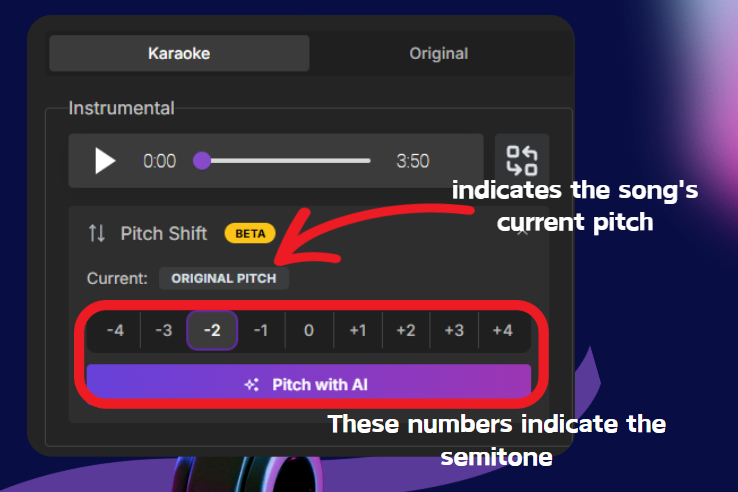
You will see a range of numbers from -4 to +4. These numbers represent semitones.
Selecting a negative number (e.g., -2) will lower the pitch.
Selecting a positive number (e.g., +2) will raise the pitch.
Selecting 0 will reset the track to its original pitch.
Inside this menu, you will also see the "Current:" display, which indicates the song's current pitch
Click on the semitone value you wish to apply. For example, click -2 to lower the pitch by two semitones.
Process and Apply the Pitch Shift:
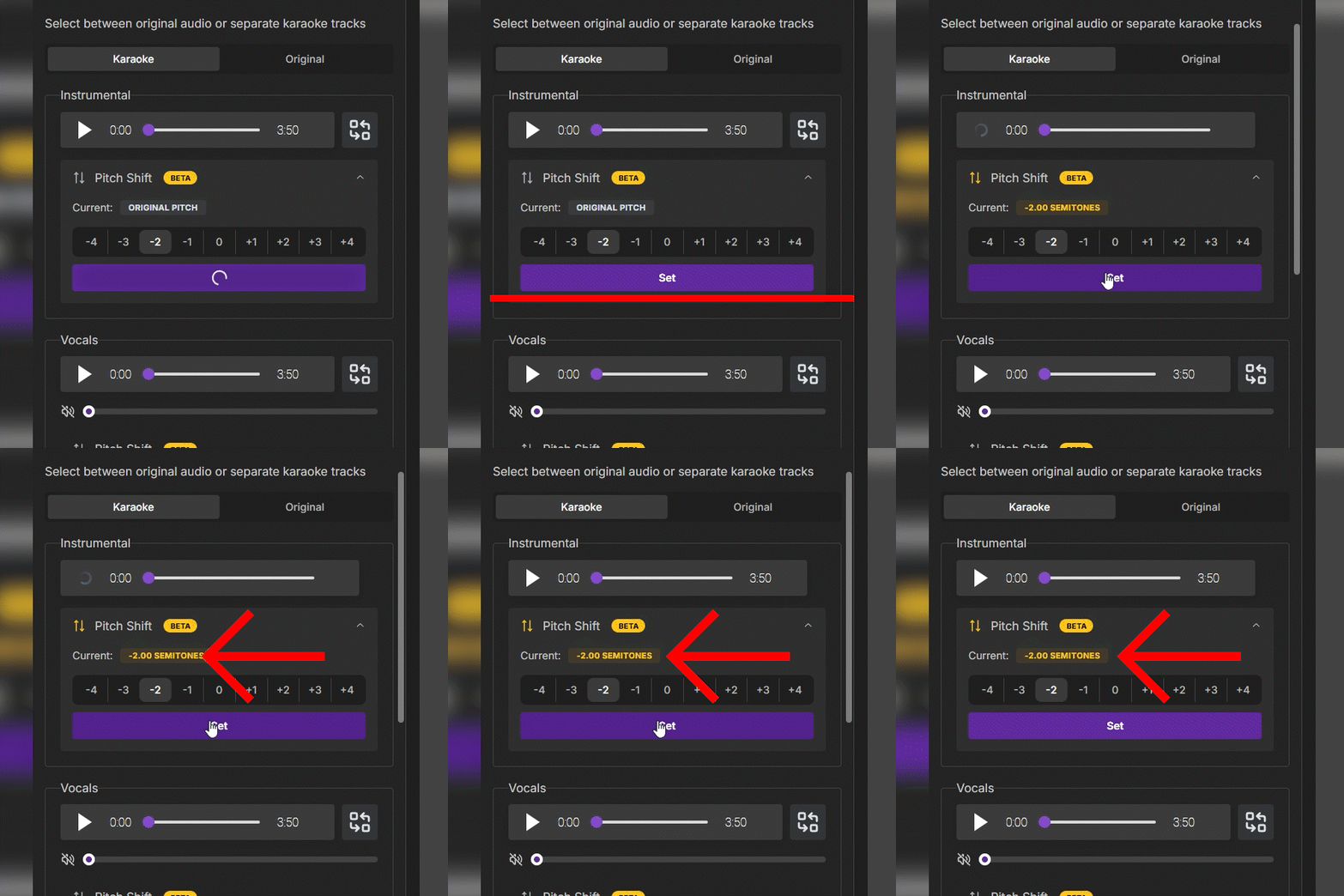
After selecting a semitone value, the large purple button at the bottom of the Pitch Shift section will change to "Pitch with AI."
Click "Pitch with AI." The system will begin processing the audio track to adjust its pitch using artificial intelligence.

Once the processing is complete, the button will change to Set.
Click Set to apply the desired pitch to your track.
The Current status above the semitone selector will update to show the new pitch.
If you decide you want to go back to the original pitch after applying a shift, simply select the "0" button and click Set again.
Tempo (BPM) Not Affected: Pitch shifting will not affect the song's tempo (BPM). Your song will maintain its original pacing and duration; only the tone will change to be more suitable for singing.
Audio Quality: Like any AI-powered audio processing, pitching can subtly affect the quality of the sound. While generally excellent, extreme shifts or lower quality original tracks may show more noticeable changes.
Separate Tracks (Karaoke Mode Only): In Karaoke mode, you are adjusting either the Instrumental or Vocal track independently. To change both, you will need to repeat the process for each track. If in Original mode, the shift applies to the entire single track.
We hope this Pitch Shift feature enhances your MyKaraoke Video experience, making it even easier to create perfect karaoke videos tailored just for you! If you have any feedback or encounter issues during the beta period, please don't hesitate to contact our support team.
