Chords are detected from your song's audio: the original track, or the instrumental if the project has no original.
Detection runs in the background and takes a few minutes. You can keep editing while you wait, and you'll be notified when it's done.
Detection only runs when you ask for it. Nothing is detected automatically.
Detection costs 2 credits per minute of audio, rounded up to the next full minute. The exact cost is shown before you confirm. Learn more in Understanding Your Credits.
Showing the Chord Lane is free. Once your project has chords, you can use the Chord Lane regardless of your plan.
Chords are detected by AI and can be wrong, especially with complex arrangements or unusual harmony. Always listen through and check them before you publish.
Prefer to enter the chords yourself? You can skip detection and add them by hand for free. See Add chords by hand below.
Open your project in the editor (Basic or Advanced). New to the editors? See Mastering Your Videos: A Guide to the Basic and Advanced Editors.
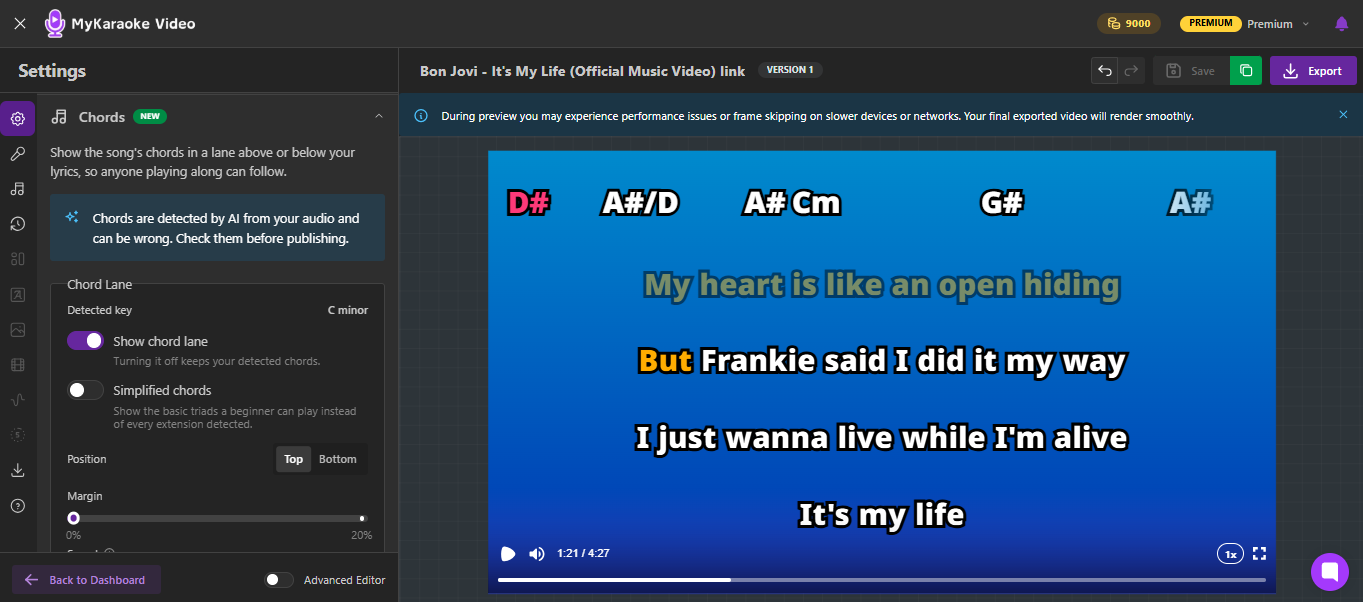
In the settings panel, open the Chords section.
Click Detect Chords.
Review the credit cost in the confirmation dialog and confirm.
Wait for the Chord detection complete notification. The Chord Lane settings appear as soon as the chords are ready.
Once chords exist, the Chords section shows the detected key of the song and these options:
Show chord lane: Turns the lane on or off in the video. Turning it off never deletes your chords. Turn it back on and everything is restored.
Simplified chords: Shows the basic triads a beginner can play, for example C instead of Cmaj7, or Am instead of Am7/G. This is a display setting only, so you can switch back to the full chords at any time.
Position: Places the lane at the Top or Bottom of the frame. The lyrics make room for the lane.
Margin: Adds space between the Chord Lane and the edge it sits on.
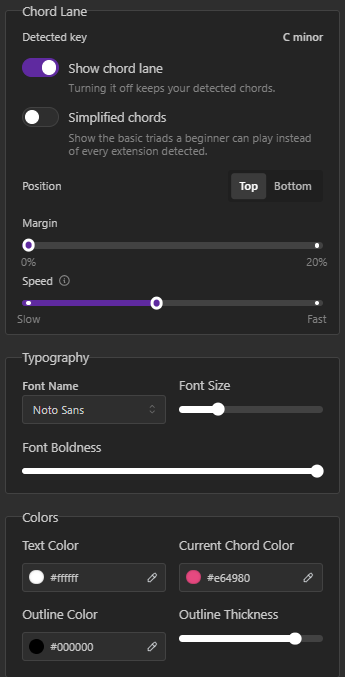
Speed: Sets how fast chords move through the lane, from Slow to Fast. A faster lane gives each chord more room, which helps when quick chord changes overlap.
Below the lane settings, you can style the chords, including their font, size, boldness, text color, outline, and Current Chord Color, which highlights the chord playing right now. Chords use the same style as Voice 1 until you give them a style of their own. A bigger font size makes the lane taller.
The lane is a moving timeline. Chords scroll past at a steady speed, spaced by how long each one lasts, so you can see the progression before it arrives. The chord that is playing is highlighted with the Current Chord Color.
When the next chord is still far away, for example during a drum intro or a long vamp on one chord, it is pinned at the edge of the lane with a countdown in seconds, so players know when the next change is coming.
The Chord Lane stays on screen during breaks and instrumental sections, even when no lyrics are shown.
If you change the key of your song with the Pitch Shift setting, the chords change with it automatically. There is nothing to redo and no extra cost. See Adjusting Your Song's Key: Using the Pitch Shift Feature.
The chords always match the audio your viewers hear. If you switch the audio source between the karaoke track and the original audio, the chords follow the pitch of whichever audio source is being used. See Audio Track Options: Karaoke vs. Original.
If the AI heard a chord wrong or placed a chord change at the wrong time, you can correct it using the chord editor:
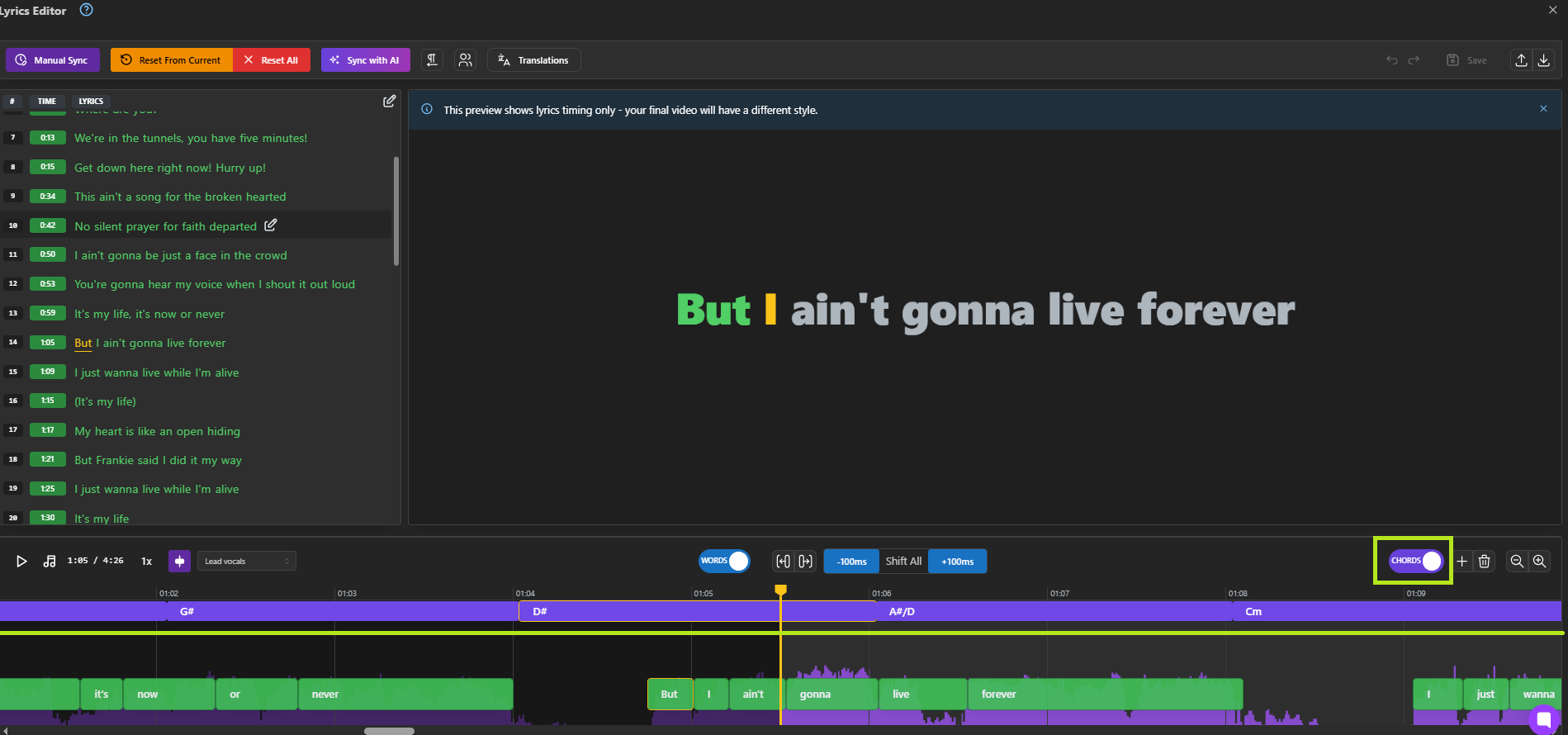
In the Chords section, click Edit Chords. This opens the chords track above the waveform.
Make your changes:
Drag a chord left or right to move it.
Drag the edge of a chord to change where it starts or ends.
Double-click a chord to rename it. You can type any chord, such as F#m or C/E.
Use Add chord at playhead to insert a chord where the playhead is, then give it a name. A chord can only be added in a free spot, so move the playhead off any existing chord first.
Select a chord and use Delete selected chord to remove it.
Use undo and redo if you make a mistake, then click Save.
Chords in the editor are shown at the pitch of the audio you are hearing, so type what you hear. If your project is pitch-shifted, the app handles the conversion for you.
You can hide the Chords track in the editor with the Chords switch above the waveform, without affecting your lyrics timing.
You don't need to run detection to use the Chord Lane. If you already know the chords, you can enter them yourself at no cost:
In the Chords section, click Add Chords by Hand. This opens the chord editor with an empty chords track.
Move the playhead to where a chord starts, click Add chord at playhead and name it. Repeat for each chord, then drag the edges to set how long each one lasts.
Click Save. The Chord Lane settings appear, and you can turn on Show chord lane.
Only detect again if you changed the song's audio. Chords follow pitch changes on their own, so a new key never needs a new detection.
If you do run it again, with Detect Again with AI in the Chords section, keep in mind:
It replaces every chord in the project, including chords you added by hand and any corrections you made. They can't be recovered.
It costs credits again.
There is no Reset to detected option, so if you have spent time correcting chords, avoid re-running detection.
Refunds: Credits are refunded automatically if detection fails. They are not refunded when detection succeeds but some chords are wrong. Use the chord editor to fix those.
Video exports: The Chord Lane is rendered in your MP4 video exports. It is not included in CDG exports.
"N" in the chord editor: A block labelled N marks a stretch with no chord, such as a silent intro. It never appears in your video. If a chord does sound there, double-click the block and name it.
Chord notation: Chords use standard pop notation, for example G, Em7, Bb, and D/F#. Simplified chords show the triad only, without the bass note.
