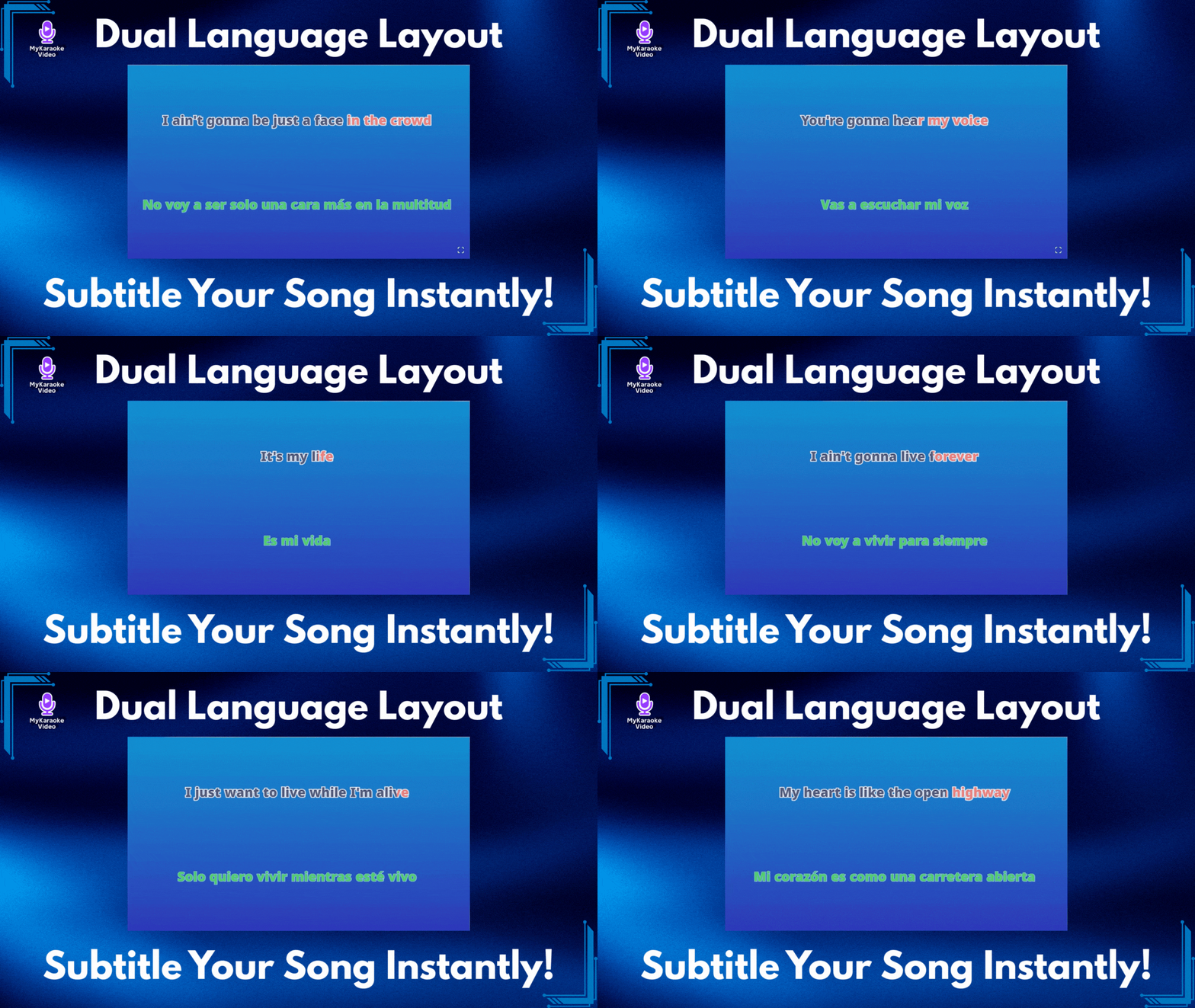
Want subtitles on your video? This guide shows you how to quickly translate your song into a second language using the Dual Language Layout—it's fast, and the timing is handled automatically!
The first step is opening the translation tool for your song that you have already created.
If it’s your first time using MyKaraoke.video and you don’t know how to create your first karaoke/lyric video, check out this article:
How to Create Your First Karaoke or Lyric Video
New to MyKaraoke Video? Learn how to get started and upload songs, remove vocals, sync lyrics automatically, customize backgrounds, and export high-quality karaoke or lyric videos with this simple step-by-step tutorial for beginners.
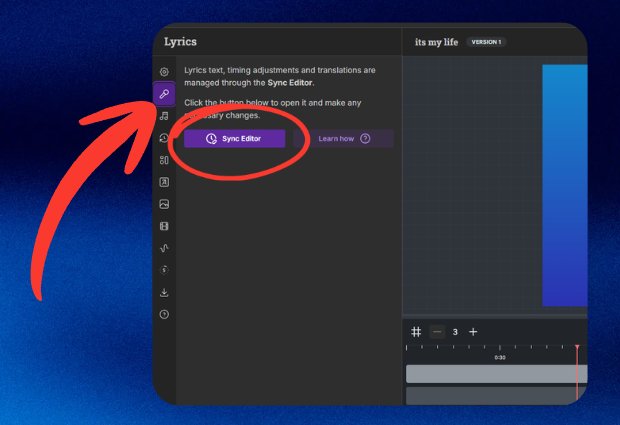
From your Dashboard, click on the project title you want to add subtitles to.
Once the editor opens, find the Microphone Icon (Lyrics menu) on the left sidebar.
Click the Sync Editor button to open the timing screen.
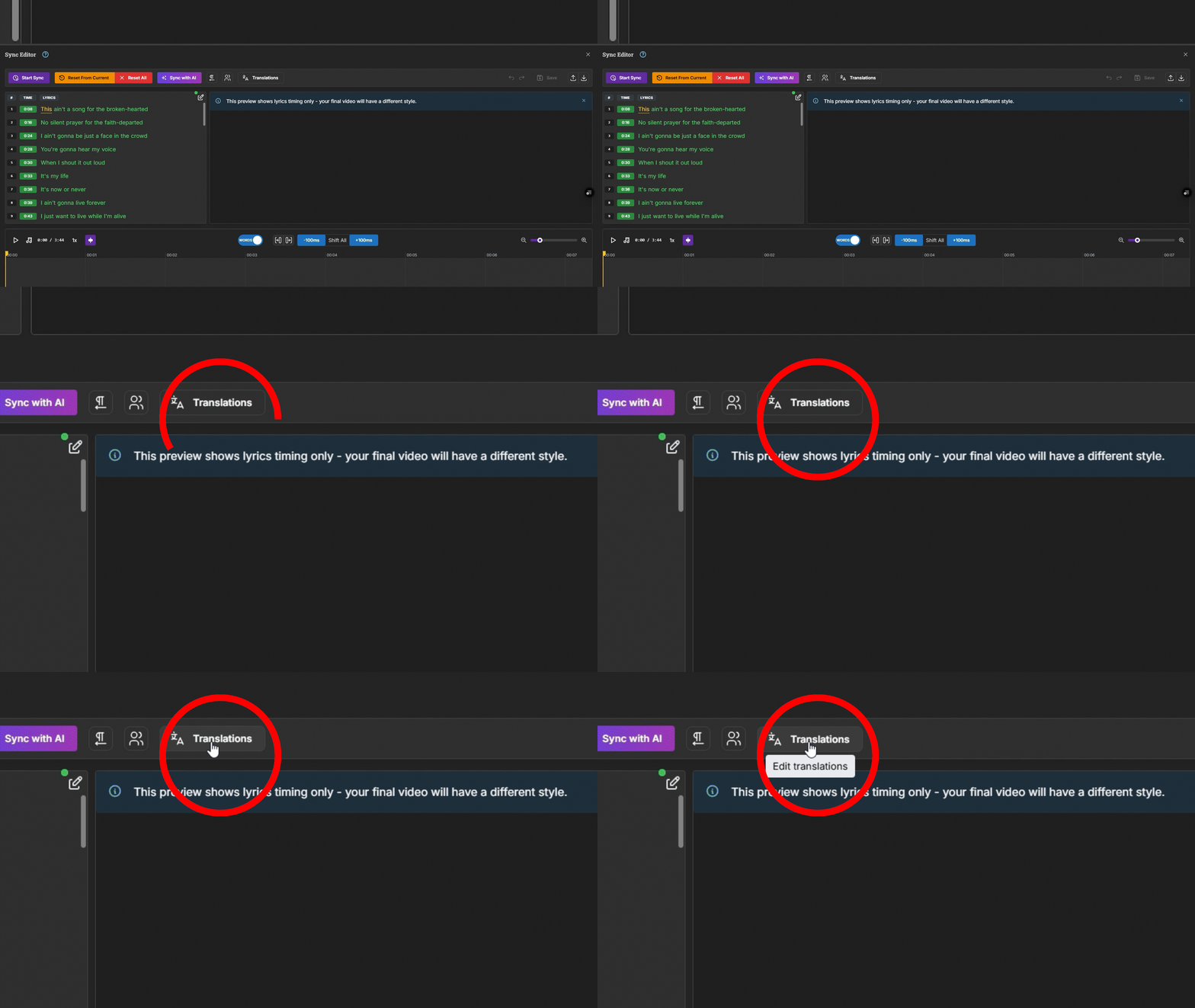
In the Sync Editor, click the "Edit translations" button (it looks like two people) at the top.
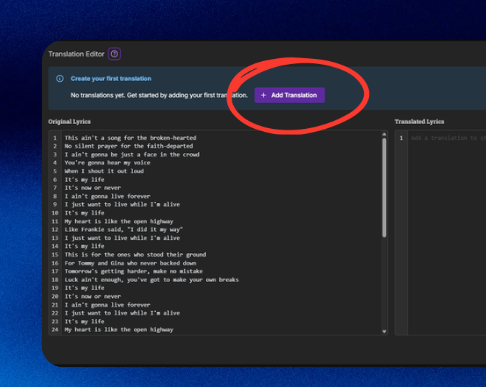
The Translation Editor window will pop up. Click the big purple "+ Add Translation" button.
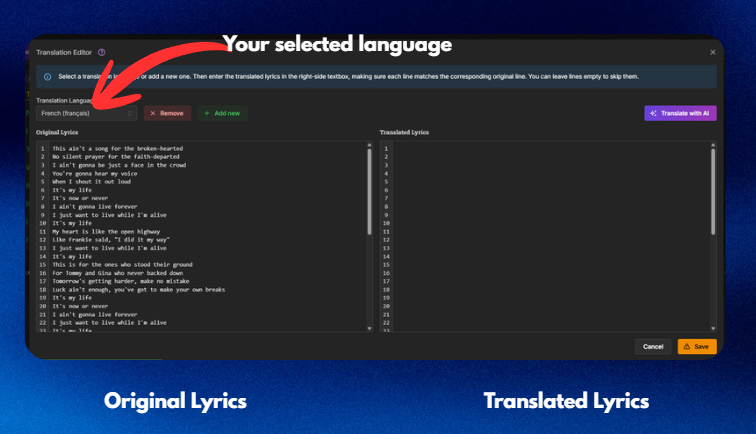
Use the dropdown menu to select the language you want to translate your song into (like french).
Click "+ Add Translation" again.
The screen now shows your Original Lyrics on the left and a blank column for the Translated Lyrics on the right.
We recommend this! It's super fast.
Click the purple "Translate with AI" button in the top-right corner.
A window will pop up asking for confirmation. Click "Translate".
Cost: This costs a flat 1 AI credit per translation, no matter how long your song is.
The AI will instantly fill in the translated lyrics for you.
New with the AI Credit system? Check out this article:
Understanding Your AI & Export Credits
All You Need to Know About Using Credits for Your Projects
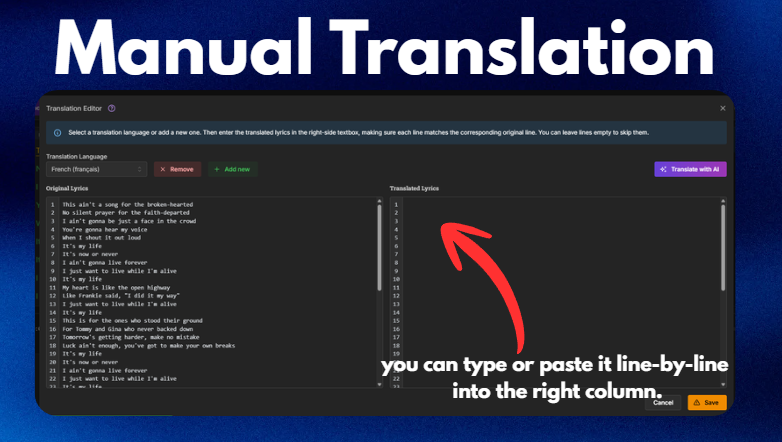
If you already have your translation written down (or you’re fluent in the translated language), you can paste it line-by-line into the right column.

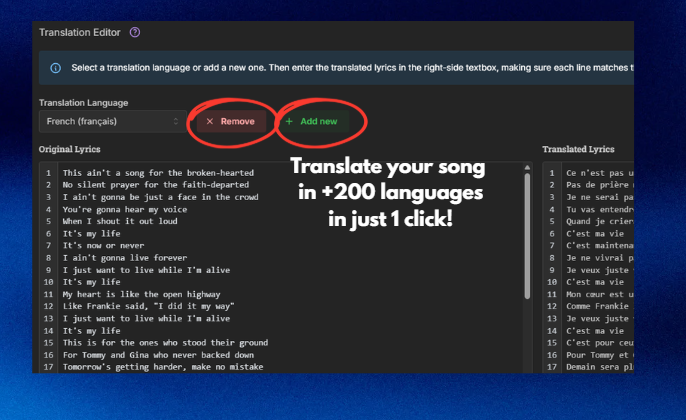
If you want more translations click "+ Add new" and repeat the steps.
If you want to remove a translation click the “x Remove” button.
When you're all done, click the green "Save" button at the bottom-right.
Exit the Sync Editor by clicking the 'X' button on the top right corner, and go back to your editor.
Now you need to tell the main video editor to display your translation using the Dual Language setting.
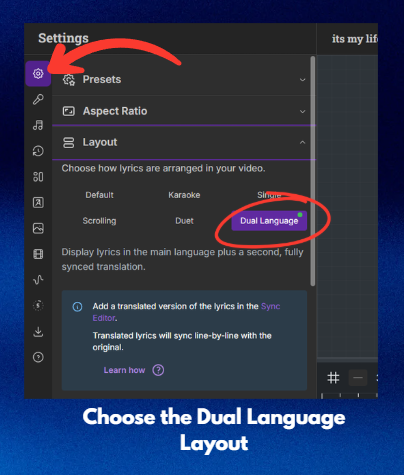
In the main editor, click the Settings menu on the left sidebar.
Click the Layout option.
Select the "Dual Language" layout.
Mastering Video Layouts and Text Styles
A Guide to Customizing Your Lyric and Karaoke Video Appearance
The best part? The translation is already perfectly synced! You just need to choose how it looks.
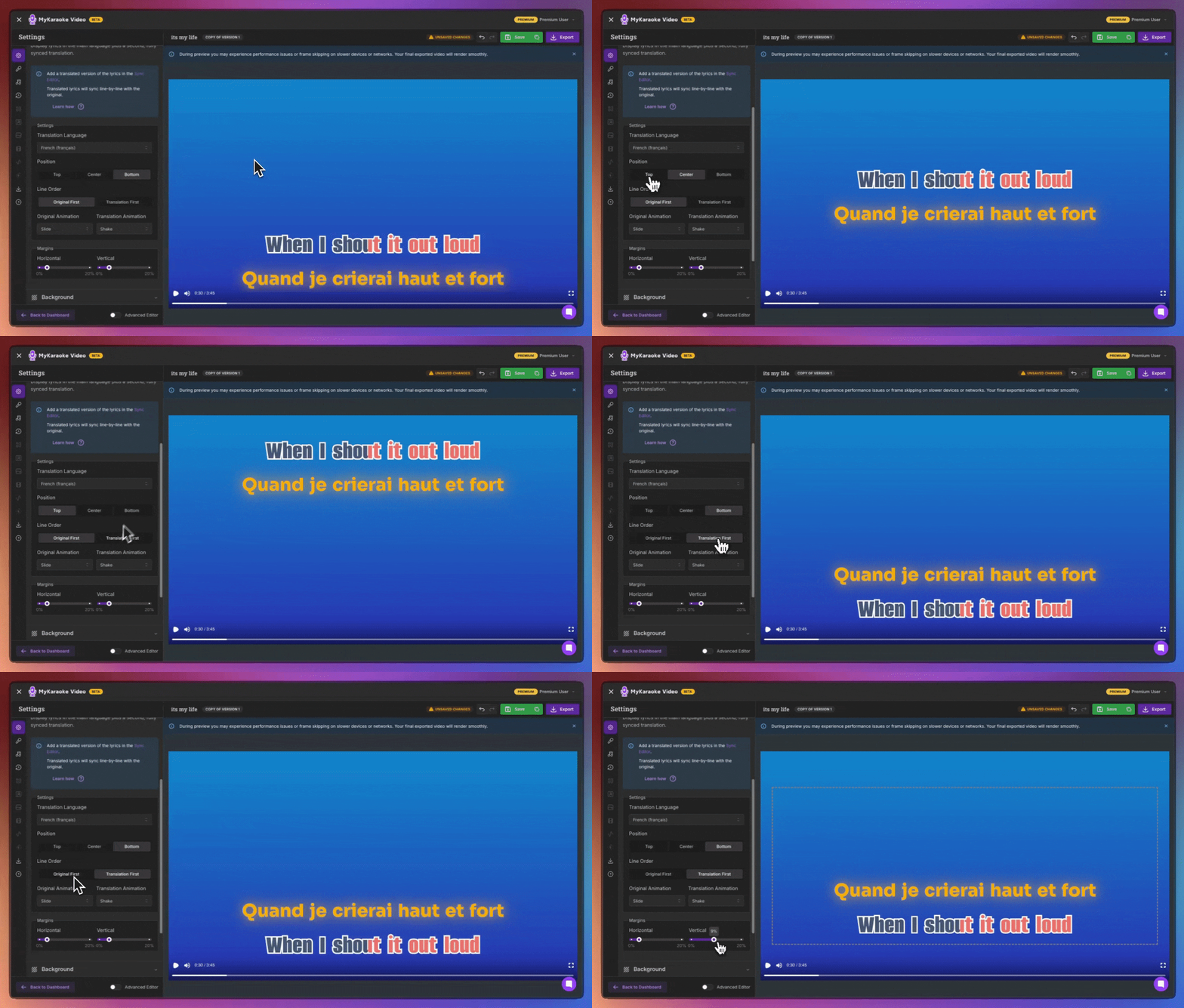
Translation Language: Choose which translated language you want to display.
Position: Choose where you want the lyrics to display on the video: Top, Center or Bottom.
Line Order: Decide whether you want the original lyrics on top or viceversa.
Animation: Set the animation (like Slide, Zoom, or Shake) for the Original lyrics and the Translation lyrics.
You can give the original lyrics and the translated lyrics completely different looks!
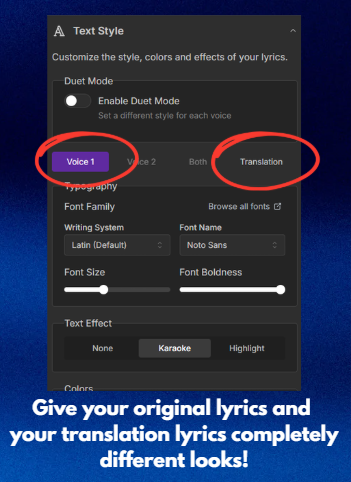
Click the Text Style menu on the left sidebar.
You'll see two tabs: Voice 1 (for the Original Lyrics) and Translation.
Use these tabs to set unique fonts, sizes, colors, and effects for each language so they stand out clearly.
When your video looks perfect, click the purple Export button in the top-right corner, and share your multi-language masterpiece!
