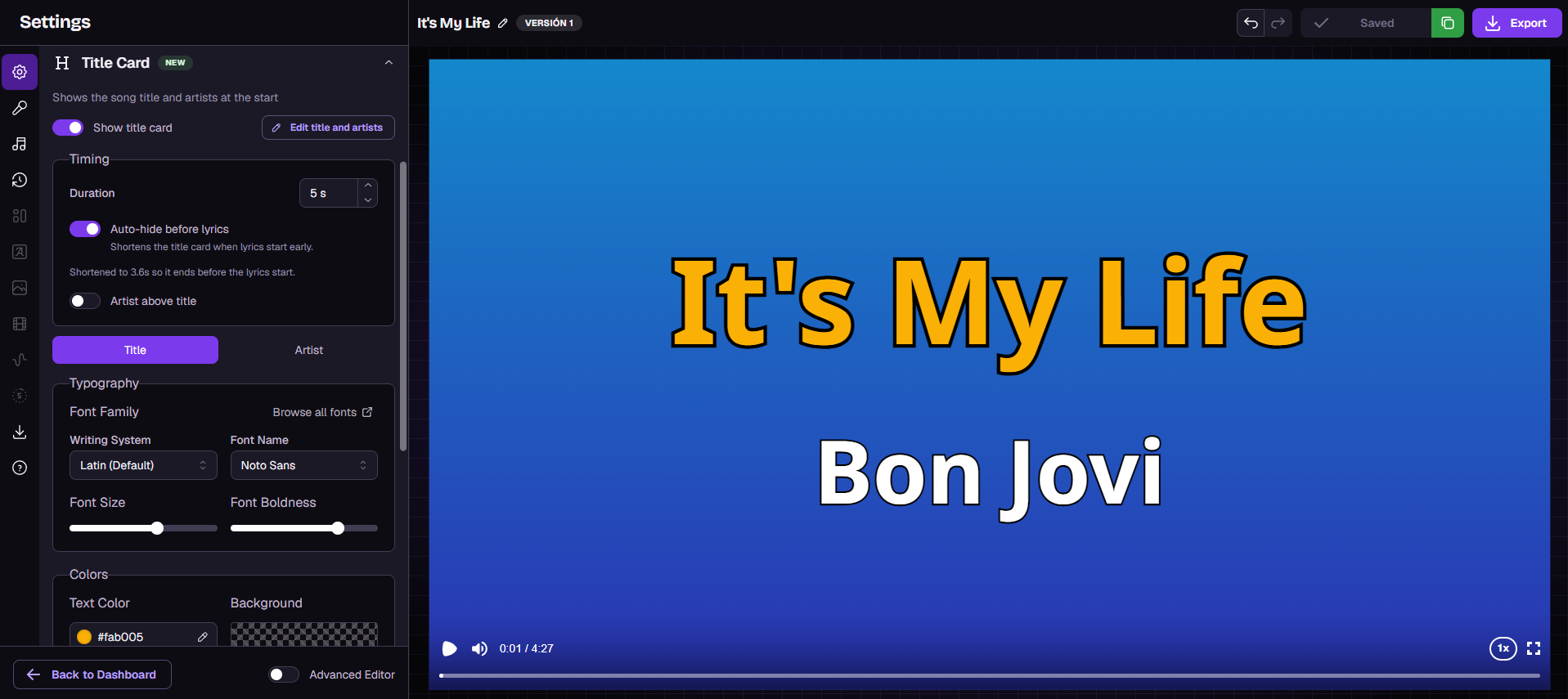
The Title Card shows the song's title and artists on screen when your video starts. It's the easiest way to give every video a polished, professional intro, with no design work needed! ✨
While the card is on screen, the lyrics stay hidden. They fade in as the card ends, so the two never overlap.
The Title Card is on by default for new videos. It's free and doesn't use any credits.
Want a fully custom intro? For animated intros with images, video or several text layers, see How to Create Custom Intro Title Screens (Advanced Editor Guide).
If you build your own intro, switch off Show title card so the two don't overlap.
Open your project in the editor. In the Advanced Editor, click the Song & Lyrics block in the timeline first.
In the settings panel, open the Title Card section. It sits right below Text Style.
Switch on Show title card.
Press play and watch your card appear at the very start of the video. 🎉
The card uses the title and artists saved in your project details.
Click Edit title and artists in the Title Card section.
Fix any typos, add featured artists, or change how the title is written.
Save. The card updates right away.
If a song has no artist, the card shows only the title.
The title and the artist line each have their own style. Use the Title and Artist tabs to switch between them.
For each line you can change:
Font and font weight
Text size
Text color and outline (color and thickness)
Background color behind the text
Letter spacing and line spacing
The Title Card's style is separate from your lyrics' style. Changing fonts or colors in Text Style won't change the card, so style it here.
The Timing box controls how long the card stays on screen and how it fits around your lyrics.
Duration: how long the card shows, from 2 to 10 seconds. The default is 5 seconds.
Auto-hide before lyrics: on by default. If the singing starts before the card would end, the card is shortened so the lyrics have time to fade in before the first word.
Artist above title: shows the artist line first and the title below it.
No worries, the card always stays on screen for at least 2 seconds, so it's readable. If a song starts singing almost immediately, you'll see one of these notes under Auto-hide before lyrics:
"Shortened to Xs so it ends before the lyrics start." The card was cut down to fit before the singing.
"Lyrics start too early for the title card." There isn't even 2 seconds before the first line. The card still shows for 2 seconds, and the first lyrics appear after it.
If you'd rather keep the full duration no matter what, switch off Auto-hide before lyrics. The lyrics will simply wait until the card is gone.
The Break Progress Bar and Break Countdown never appear while the card is on screen. They start once it's gone.
If you trim the start of your song, the card shows from the new start point.
Learn more in the Cues & Timers article. [LINK: add once published]
Each version has its own card. Changes apply only to the version you're editing.
Presets: saving a Project Preset stores your Title Card settings, so you can reuse the same look on every song.
Non-Latin titles: if the title shows empty boxes, pick a font that supports your language. See Lyrics Not Showing? Fix Fonts for Non-Latin Languages.
No title card wanted? Switch off Show title card and your video starts without it.