Cues & Timers are the on-screen signals around your lyrics. They tell singers when the next line is coming, how long an instrumental break lasts, and how far into the song they are. No more missed entries! 🙌
There are five cues, and you can switch each one on or off:
Cue | What it shows |
|---|---|
Lead-In | A small bar that slides toward the first word of a line, just before it starts |
Break Countdown | A big number counting down the last seconds of an instrumental break |
Break Progress Bar | A bar that fills up during an instrumental break |
Hide Lyrics During Breaks | Fades the lyrics out during long breaks and back in before the next line |
Song Progress | A thin bar across the top or bottom showing progress through the whole song |
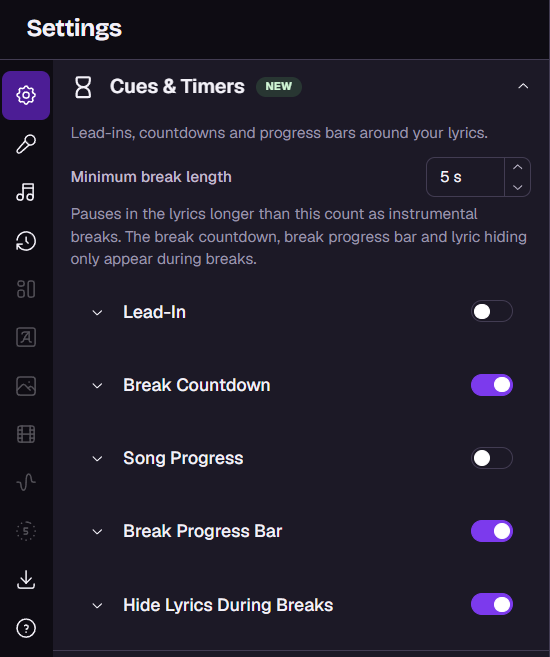
Open your project in the editor. In the Advanced Editor, click the Song & Lyrics block in the timeline first.
In the settings panel, open the Cues & Timers section. It's just below Title Card.
Use the switch next to each cue to turn it on or off.
Click a cue's name to expand it and see its settings.
Press play or scrub the player to see your changes live. 👀
At the top of the section is Minimum break length (3 to 60 seconds, default 5). Any pause in the lyrics longer than this counts as an instrumental break.
This one setting is shared by three cues: the Break Countdown, the Break Progress Bar and Hide Lyrics During Breaks. They only appear during breaks. A gap before the first line counts as a break too.
Raise it if cues pop up during short pauses between verses.
Lower it if a break isn't getting a countdown or bar.
A short bar that slides in toward a line's first word, so the singer knows exactly when to start.
Style: Classic (a solid sliding block) or Fade Tail (a bar with a fading tail).
Duration: how long before the line the lead-in starts, from 0.5 to 4 seconds.
On every line or Only after gaps longer than a number of seconds. Use the second option to show lead-ins only after pauses, where singers need them most.
Width, Horizontal offset and Vertical offset: size the bar and fine-tune where it comes to rest next to the word.
Colors: with Use next singer's style on, each lead-in takes the colors of its line's singer. Switch it off to pick a fill and outline color yourself.
The Lead-In isn't available in the Single layout. Switch to another layout to use it. See Mastering Video Layouts and Text Styles.
A large number counts down the last seconds of a break, ending as the next line starts.
Max duration: the longest the countdown shows (3 to 10 seconds). On a shorter break, it uses the time available.
Colors: Use next singer's style matches the countdown to whoever sings next, which is handy in duets. Or set your own text and outline color.
Text size: how big the numbers are.
Normally the countdown shows near the top of the screen. It moves inside the Break Progress Bar only when the bar stays up for the whole countdown, which means setting the bar's Hide before end to 0.
A bar fills up during a break, so singers can see how long until they're back on.
Position: top, center or bottom of the screen.
Max duration: the longest the bar shows before the next lyrics (3 to 60 seconds).
Hide before end: hides the bar up to 3 seconds early, so the next lyrics are clear.
Colors: follow the next singer's style, or pick the background, fill and outline colors. You can also set the Outline thickness.
Shape: Width, Height and Rounded corners.
The lyrics fade out during long breaks, leaving the screen clean, and fade back in before the next line. It also clears the lyrics after the last line of the song.
Lyrics lead time: how many seconds before the next line the lyrics reappear (1 to 10 seconds, default 3). Give slower readers a little extra time. 😊
A thin bar across the screen that fills from the start to the end of the song.
Position: top or bottom.
Color, Background color and Background opacity.
Thickness of the bar.
Show elapsed / total time: adds a timer such as 1:23 / 3:45.
Duets: in Duet Mode, Use next singer's style takes colors from Voice 1, Voice 2 or Both, as set in Text Style. A swatch preview shows which colors each singer will use.
Title Card: the break countdown and progress bar never show while the Title Card is on screen. Learn More
Older projects: your previous timer settings carry over, so existing videos look the same. New cues such as Song Progress start off.
Each version has its own cues. Changes apply only to the version you're editing.
Presets: saving a Project Preset stores your Cues & Timers settings for reuse on other songs.
Cues need synced lyrics. Breaks and lead-ins are worked out from your lyric timings. If a cue appears in the wrong place, check the timing in the Lyrics Editor.
Need a countdown at a specific moment? Cues only appear during breaks. To place a countdown anywhere in your video, add a countdown element in the Advanced Editor.
